Xclusively brought to u by ©het Rockzzz...
1. US Dollar bills are made out of cotton and linen.
2. The "57" on the Heinz ketchup bottle represents the number of pickle types the company once had.
3. Americans are responsible for about 1/5 of the world's garbage annually. On average, that's 3 pounds a day per person.
4. Giraffes and rats can last longer without water than camels.
5. Your stomach produces a new layer of mucus every two weeks so that it doesn't digest itself.
6. The dot over the letter "i" is called a tittle.
7. In ancient Rome, when a man testified in court he would swear on his testicles.
8. The ZIP in "ZIP code" means Zoning Improvement Plan.
9. Coca-Cola contained Coca (whose active ingredient is cocaine) from 1885 to 1903.
10. Every person, including identical twins, has a unique eye and tongue print along with their finger print.
11. The "spot" on the 7-Up logo comes from its inventor who had red eyes. He was an albino.
12. 315 entries in Webster's 1996 dictionary were misspelled.
13. Chocolate can kill dogs; it directly affects their heart and nervous system.
14. Camel's have three eyelids.
Nearly 320 Facts Available on...
http://320facts.blogspot.com/
Tune in.. && dig more...
You can submit ur facts to me & it can b put up on my blog.
send me at :: thegrchet@gmail.com
Saturday, June 14, 2008

Thursday, June 12, 2008
21 Useful tips to make ur computer Fast??
This is for who having Low Config........
Quote:
1] Your Pc Must have 256MB RAM , 512 MB Cache , Intel Pentium 4 Processor, 40 GB HDD. These are the minimum requirements.
2] If you see a 'virtual memory low' message then increase its virtual memory. To increase virtual memory,
Go to My Computer->Properties->Advanced->Performance Settings->Advanced->Virtual Memory->Change->Select the appropriate drive->Custom size->set appropriate level(our it is 600(min.) & 700(max.)->Ok.
3] Increase 'Visual Performance'. Go to My Computer->Properties->Advanced->Performance Settings->Visual Settings->Custom->Select only the following options.
a)Slide taskbar buttons.
b)Smooth edges of screen fonts.
c)Smooth-scroll list boxes.
d)Use a background image for each folder type.
e)Use visual style on windows and buttons.
4] Don't keep unwanted/extra fonts. To remove extra fonts, Go to Start->Settings->Control Panel->Fonts.
5] Your Desktop Wallpaper & Screensaver consume a large amount of disk space. Select the 'None' option for both wallpapers & Screensavers.
6] Avoid keeping DEMO Games.
7] Uninstall the unwanted Softwares.
8] Use Registry Cleaner to keep your registry clean(without errors).
9] Try to keep Music and pictures files in the folder specified by windows itself.
10]Use Hybernating Option for Quick windows start. To active Hybernating follow the following steps.
Desktop->Properties->Screensaver->Power->Hybernating->Enable Hybernating->Ok.
11] Keep your Dektop clean with unwanted icons.
12] Use Intel Application Accelerator to speed up your disk access,
13] Memory management (at least 512MB RAM Required). This allow XP to keep data in Memory instead of paging section of RAM.
Go to->Start->Run->regedit->HKEY_LOCAL_MACHINE->SYSTEM->CurrentControlSet->Control->Session Manager->Memory Management->Double click it->DisablePageingExecutive->Double Clik it->Set value to 1.
14] Disable Yahoo Messenger, Google Talk, and other unwanted programs from startup. (You can use registry editior to do this.). Because they do not appear in normal Startup Option.
15] Disable indexing files service (only if you do not use search option regularly). To do this follow the following steps.
Go to My Computer->Select the drive for which you want to disable the indexing service->Properties->Unselect 'Allow Indexing Service'->Ok.
16] For Windows XP, You must use NTFS partition. FAT partition is less supportive for Windows XP.
17] In BIOS, Select first booting device as your HDD.
18] Setting Priority High for a particular program.
Open Task Manager->Processes->Select the desired Program->Right Click->Set Priority->High->Ok.
This Priority set if for current session. Once you restart your system then its priority will again be Normal.
19] Keep deleting your Temporary Internet Files in regular intervals.
Go to Windows Drive (c: or d:)->Select the User->Local Settings->Temporary Internet Files
20] Empty your browser's cache in regular intervals.
21] Avoid keeping Movies in your PC
Quote:
1] Your Pc Must have 256MB RAM , 512 MB Cache , Intel Pentium 4 Processor, 40 GB HDD. These are the minimum requirements.
2] If you see a 'virtual memory low' message then increase its virtual memory. To increase virtual memory,
Go to My Computer->Properties->Advanced->Performance Settings->Advanced->Virtual Memory->Change->Select the appropriate drive->Custom size->set appropriate level(our it is 600(min.) & 700(max.)->Ok.
3] Increase 'Visual Performance'. Go to My Computer->Properties->Advanced->Performance Settings->Visual Settings->Custom->Select only the following options.
a)Slide taskbar buttons.
b)Smooth edges of screen fonts.
c)Smooth-scroll list boxes.
d)Use a background image for each folder type.
e)Use visual style on windows and buttons.
4] Don't keep unwanted/extra fonts. To remove extra fonts, Go to Start->Settings->Control Panel->Fonts.
5] Your Desktop Wallpaper & Screensaver consume a large amount of disk space. Select the 'None' option for both wallpapers & Screensavers.
6] Avoid keeping DEMO Games.
7] Uninstall the unwanted Softwares.
8] Use Registry Cleaner to keep your registry clean(without errors).
9] Try to keep Music and pictures files in the folder specified by windows itself.
10]Use Hybernating Option for Quick windows start. To active Hybernating follow the following steps.
Desktop->Properties->Screensaver->Power->Hybernating->Enable Hybernating->Ok.
11] Keep your Dektop clean with unwanted icons.
12] Use Intel Application Accelerator to speed up your disk access,
13] Memory management (at least 512MB RAM Required). This allow XP to keep data in Memory instead of paging section of RAM.
Go to->Start->Run->regedit->HKEY_LOCAL_MACHINE->SYSTEM->CurrentControlSet->Control->Session Manager->Memory Management->Double click it->DisablePageingExecutive->Double Clik it->Set value to 1.
14] Disable Yahoo Messenger, Google Talk, and other unwanted programs from startup. (You can use registry editior to do this.). Because they do not appear in normal Startup Option.
15] Disable indexing files service (only if you do not use search option regularly). To do this follow the following steps.
Go to My Computer->Select the drive for which you want to disable the indexing service->Properties->Unselect 'Allow Indexing Service'->Ok.
16] For Windows XP, You must use NTFS partition. FAT partition is less supportive for Windows XP.
17] In BIOS, Select first booting device as your HDD.
18] Setting Priority High for a particular program.
Open Task Manager->Processes->Select the desired Program->Right Click->Set Priority->High->Ok.
This Priority set if for current session. Once you restart your system then its priority will again be Normal.
19] Keep deleting your Temporary Internet Files in regular intervals.
Go to Windows Drive (c: or d:)->Select the User->Local Settings->Temporary Internet Files
20] Empty your browser's cache in regular intervals.
21] Avoid keeping Movies in your PC
How To Reinstall Windows Without Losing Anything Here Is Another Possible Solution
How To Reinstall Windows Without Losing Anything Here Is Another Possible Solution:easy way and tested:
1- Start WindowsXP
2- Go to the location of your source files
3- Run WINNT32 /unattend
For example, D:\I386\winnt32 /unattend ( copy & paste this command into the RUN box, then press ENTER ) Your computer will do the rest.
Or,
Start > All Programs > Accessories > Command Prompt.
Copy & paste > D:\I386\winnt32 /unattend
Press Enter.
If you have i386 on your drive, you can replace D: ( if D: is your cd drive ) with the location of it.
I've often need to do this to repair something that had gotten corrupted and didn't want to do a clean install.
D: is the driver letter where your windows XP Cd is
if D:\I386\winnt32 /unattend doesn't work then try : d:\winnt32 /unattend.
1- Start WindowsXP
2- Go to the location of your source files
3- Run WINNT32 /unattend
For example, D:\I386\winnt32 /unattend ( copy & paste this command into the RUN box, then press ENTER ) Your computer will do the rest.
Or,
Start > All Programs > Accessories > Command Prompt.
Copy & paste > D:\I386\winnt32 /unattend
Press Enter.
If you have i386 on your drive, you can replace D: ( if D: is your cd drive ) with the location of it.
I've often need to do this to repair something that had gotten corrupted and didn't want to do a clean install.
D: is the driver letter where your windows XP Cd is
if D:\I386\winnt32 /unattend doesn't work then try : d:\winnt32 /unattend.
SMS Shortcuts xclusively by Chet
1dRfl - wonderful
2 - to/too/two
2dA - today
2moro - tomorrow
2nite - tonite
3dom - freedom
4 - for
4get - forget
4N - foreign
ADN - any day now
AFAIK - as far as I know
AFAIR - as far as I recall
ASAP - as soon as possible
ATM - at the moment
B - be
B4 - before
B4N - bye for now
BB - bye-bye
Bf -boyfriend
BG - big grin
BION - believe it or not
BK - big kiss
BTDT - been there, done that
BTW - by the way
By - busy
C - see/sea
CB - call back
CUL - see you later
CWYL - chat with you later
DUZ - does
DUZNT - doesn't
F2F - free to talk?
G2G - got to go
Gf - girlfried
Gr8 - great
Grr - angry
H2 - how to
HUH - have you heard?
IC - I see
ICCL - I couldn't care less
IK - I know
ILU (or ILY) - I love you
in4ml - informal
KISS - keep it simple, stupid
KUTGW - keep up the good work
L8 - late
L8r - later
LMK - let me know
M8 - mate
MOF - matter of fact
MT - empty
MTE - my thoughts exactly
NAGI - not a good idea
Ne - any
Ne1 - anyone
No1 - no one
nrg - energy
OIC - Oh I see
OK - okay
ONNA - oh no, not again!
OTT- over the top
PCM - please call me
Pls - please
Ppl - people
PTL - praise the Lord
R - are
Re - regarding
RUOK - are you okay?
Spk - speak
Sry - sorry
SWAK - sealed with a kiss
THX - thanks
TTYL - talk to you later
TXT - text
U - you
U@ - you at? (where are you?)
UOK - you okay?
UR - your/you're
Usu - usually
W8 - wait
W84M - wait for me
W/ - with
Wan2 - want to
wn - when
WMF - works for me
XLNT - excellent
Y - why
YM - you mean
YR - yeah, right
GONNA "Going to"
@ "At"
MSG "Message"
W "With"
ATB "All the best"
NE "Any"
W/O "Without"
B "Be, Bee"
NETHNG "Anything"
WKND "Weekend"
BCNU "I'll be seeing you"
NE1 "Anyone"
XLNT "Excellent"
BWD "Backward"
NO1 "No-one"
XOXOX "Hugs and kisses"
B4 "Before"
OIC "Oh, I see"
YR "Your"
C "See, Sea"
PCM "Please call me"
1 "One, Won"
CU "See you"
PLS "Please"
2 "Too, To, Two"
DOIN "Doing"
PPL "People"
:) Original smiley
:-) Classic smiley
;-) Wink
:-)) Very happy
|-) Hee-hee
:-D Laugh loud
:-o Amazement
:^D" Great! I like it!
:-* Kiss
<3 I love you
:-s Confusion
{} No comment
:-C Totally unbelievable
:-X Big wet kiss
:-9 Licking lips
%-) Confused
*:* Fuzzy face
:-@ Screaming
:-7 Wry remark
:-p Sticking out tongue
:-( Frown
:> Develish grin
(:-|K- Dressed to kill
:-|| Angry
::=)) Seeing double
:-> Hey
|:-0 No explanation
#:-) Hair in a mess
>;-(' I am spitting mad
#-) Partied all night
:-| Hmmm
:-& Tongue-tied
SUM1 "Someone"
3SUM "Threesome"
GR8 "Great"
STRA "Stray"
4 "For, Four"
H8 "Hate"
THNQ "Thank you"
:-) "I'm happy"
L8 "Late"
THX "Thanks"
:-o "I'm surprised"
L8R "Later"
U "You"
:-( "Sad face"
LUV "Love"
UR "You are "
d:) "Baseball cap "
MOB "Mobile"
WAN2 "Want to?"
;-/ "Confused"
2DAY "Today"
F2T "Free to talk"
RUOK "Are you okay?"
2MORO "Tomorrow"
FWD "Forward"
RGDS "Regards"
(:-... Heart-broken
%-) I'm tipsy but happy
#:-o Oh no!
:-# My lips are sealed
8-) Sender wears glasses
:+( I'm hurt by that
:*)? Are you drunk?
<:-0 Eeek!
:-e I'm disappointed
(-: Sender is left-handed
<:-) Dumb question
~o~ Bird
:@ Ouch!
:-(*) Sick comment
(:-) Bald
:// Frustrated
:3-< Dog
d:-) Hats off to your great idea
:-$ Put your money where your mouth is
:-{) Sender has moustache
|-| Going to sleep
:@) Pig
\o/ Praise the Lord
*<:o) Clown
:-{)} Sender has moustache & beard
:=8) Baboon
8^ Chicken
~#:-( Bad hair day
:'-( I am crying
:*) I' tipsy
:-o Oh
O:-) Innocent
&:-) Sender has curly hair
2 - to/too/two
2dA - today
2moro - tomorrow
2nite - tonite
3dom - freedom
4 - for
4get - forget
4N - foreign
ADN - any day now
AFAIK - as far as I know
AFAIR - as far as I recall
ASAP - as soon as possible
ATM - at the moment
B - be
B4 - before
B4N - bye for now
BB - bye-bye
Bf -boyfriend
BG - big grin
BION - believe it or not
BK - big kiss
BTDT - been there, done that
BTW - by the way
By - busy
C - see/sea
CB - call back
CUL - see you later
CWYL - chat with you later
DUZ - does
DUZNT - doesn't
F2F - free to talk?
G2G - got to go
Gf - girlfried
Gr8 - great
Grr - angry
H2 - how to
HUH - have you heard?
IC - I see
ICCL - I couldn't care less
IK - I know
ILU (or ILY) - I love you
in4ml - informal
KISS - keep it simple, stupid
KUTGW - keep up the good work
L8 - late
L8r - later
LMK - let me know
M8 - mate
MOF - matter of fact
MT - empty
MTE - my thoughts exactly
NAGI - not a good idea
Ne - any
Ne1 - anyone
No1 - no one
nrg - energy
OIC - Oh I see
OK - okay
ONNA - oh no, not again!
OTT- over the top
PCM - please call me
Pls - please
Ppl - people
PTL - praise the Lord
R - are
Re - regarding
RUOK - are you okay?
Spk - speak
Sry - sorry
SWAK - sealed with a kiss
THX - thanks
TTYL - talk to you later
TXT - text
U - you
U@ - you at? (where are you?)
UOK - you okay?
UR - your/you're
Usu - usually
W8 - wait
W84M - wait for me
W/ - with
Wan2 - want to
wn - when
WMF - works for me
XLNT - excellent
Y - why
YM - you mean
YR - yeah, right
GONNA "Going to"
@ "At"
MSG "Message"
W "With"
ATB "All the best"
NE "Any"
W/O "Without"
B "Be, Bee"
NETHNG "Anything"
WKND "Weekend"
BCNU "I'll be seeing you"
NE1 "Anyone"
XLNT "Excellent"
BWD "Backward"
NO1 "No-one"
XOXOX "Hugs and kisses"
B4 "Before"
OIC "Oh, I see"
YR "Your"
C "See, Sea"
PCM "Please call me"
1 "One, Won"
CU "See you"
PLS "Please"
2 "Too, To, Two"
DOIN "Doing"
PPL "People"
:) Original smiley
:-) Classic smiley
;-) Wink
:-)) Very happy
|-) Hee-hee
:-D Laugh loud
:-o Amazement
:^D" Great! I like it!
:-* Kiss
<3 I love you
:-s Confusion
{} No comment
:-C Totally unbelievable
:-X Big wet kiss
:-9 Licking lips
%-) Confused
*:* Fuzzy face
:-@ Screaming
:-7 Wry remark
:-p Sticking out tongue
:-( Frown
:> Develish grin
(:-|K- Dressed to kill
:-|| Angry
::=)) Seeing double
:-> Hey
|:-0 No explanation
#:-) Hair in a mess
>;-(' I am spitting mad
#-) Partied all night
:-| Hmmm
:-& Tongue-tied
SUM1 "Someone"
3SUM "Threesome"
GR8 "Great"
STRA "Stray"
4 "For, Four"
H8 "Hate"
THNQ "Thank you"
:-) "I'm happy"
L8 "Late"
THX "Thanks"
:-o "I'm surprised"
L8R "Later"
U "You"
:-( "Sad face"
LUV "Love"
UR "You are "
d:) "Baseball cap "
MOB "Mobile"
WAN2 "Want to?"
;-/ "Confused"
2DAY "Today"
F2T "Free to talk"
RUOK "Are you okay?"
2MORO "Tomorrow"
FWD "Forward"
RGDS "Regards"
(:-... Heart-broken
%-) I'm tipsy but happy
#:-o Oh no!
:-# My lips are sealed
8-) Sender wears glasses
:+( I'm hurt by that
:*)? Are you drunk?
<:-0 Eeek!
:-e I'm disappointed
(-: Sender is left-handed
<:-) Dumb question
~o~ Bird
:@ Ouch!
:-(*) Sick comment
(:-) Bald
:// Frustrated
:3-< Dog
d:-) Hats off to your great idea
:-$ Put your money where your mouth is
:-{) Sender has moustache
|-| Going to sleep
:@) Pig
\o/ Praise the Lord
*<:o) Clown
:-{)} Sender has moustache & beard
:=8) Baboon
8^ Chicken
~#:-( Bad hair day
:'-( I am crying
:*) I' tipsy
:-o Oh
O:-) Innocent
&:-) Sender has curly hair
Tuesday, May 13, 2008
How to Subtitle Your Videos
So you remove your DVD remotes, put in City of God DivX CD that you have illegally downloaded/ripped, and voila! No subtitles. You won’t understand even the swear words, so what’s the point? In India we make movies in a zillion languages, yet good films are few and far between. We also have homegrown videos, where intelligibility of speech and vision is a debatable issue. So subtitles are a part of your DVD architecture that can make life a lot easier.
No worries, here are some tips for retrieving subtitles from the net, adding your own subs, changing their color etc. I've added pointers on how to resync your subtitles if they go out of sync, as that also happens a lot, yielding funny lip movements. On a frank and serious note, these issues never arise in an original DVD or official download, and it actually is less stressful watching good ol’ box packs. But for anti-DRM folks out there, there's more...
Resources for Subtitles
The first and best way to get your subtitles is to rip it out of the DVD. Let's run through the process. There are quite a few methods and softwares that do it, but I go by the following process.
First get yourself VobSub from here. This is a free subtitle filtering utility that works on the Directshow environment. The files associated with it are .sub and .idx. There are other types of subtitle files; we will encounter them as we go along. VobSub is important as it is anyway needed to play subtitles for any AVI file in software media players, provided the .sub and .idx file are in the same directory as the movie, and with the same name.
No worries, here are some tips for retrieving subtitles from the net, adding your own subs, changing their color etc. I've added pointers on how to resync your subtitles if they go out of sync, as that also happens a lot, yielding funny lip movements. On a frank and serious note, these issues never arise in an original DVD or official download, and it actually is less stressful watching good ol’ box packs. But for anti-DRM folks out there, there's more...
Resources for Subtitles
The first and best way to get your subtitles is to rip it out of the DVD. Let's run through the process. There are quite a few methods and softwares that do it, but I go by the following process.
First get yourself VobSub from here. This is a free subtitle filtering utility that works on the Directshow environment. The files associated with it are .sub and .idx. There are other types of subtitle files; we will encounter them as we go along. VobSub is important as it is anyway needed to play subtitles for any AVI file in software media players, provided the .sub and .idx file are in the same directory as the movie, and with the same name.
Saturday, May 3, 2008
Why I recommend Sowcarpet to visitors
hey ppl… this is the best place,where I recommend u all to visit whenever u visit,Chennai. U get everything here for shopping and all at economic rates.The place which is actually brought up by JAINS..& is the best on World Map.
Womens,who are very much addicted towards fashion & cannot find any Accessories in Tamilnadu ..Dont worry u’ll certainly find it in Sowcarpet…A place which is enriched full of Fashion,Enthusiasm,Rock Starz,gR8 Dancers,Most Talented,Born Business Man’s,Engineers..& all at one single place ””Sowcarpet”“
Reason to Visit:: Most no. of Jain Temples,Best Food,Fashion Elements,Accessories,Electronic Equipments,Gadgets,Elctrical Goods,Wires & Cables,Readymade Clothes,Stylish Clothes.
See more progress on: Sowcarpet
INTERNET ADDICTION
According to a new study , 'Internet addiction' is becoming a serious, widespread issue or indeed problem in some cases. It has the potential to become a compulsive disorder along the lines of substance abuse and impulse control disorder if it is not identified and treated on time. The researchers carried out a telephonic study of indians and found that between 6 to 12 percent of Internet users were addicted to the computer and were even neglecting their work, food and families because of their internet addiction. In the study, the researchers found that 5.9 percent of the respondents realized that their relationships were suffering because of their addiction and 13.7 percent of the respondents were so addicted to the Internet that they could not even stay away from the Internet even for a few days . In the survey 8.7 percent of the respondents felt the need to hide their excessive non- essential Internet use from their friends, family and even employers. An important finding of the survey was that more than 8 percent of the internet users were using it to self medicate, uplift their mood and as a means to escape from reality. These non- essential computer users were falling into this trap because the computers offer them anonymity and a sense of closeness and connectivity. The survey indicates that the most likely people to fall into this trap are single, well educated young men in their thirties who spend about thirty hours every week surfing the internet and are willing to substitute their social interactions with these virtual surreal interactions on the internet. These symptoms of “Internet addiction” are very similar to alcoholism and other substance abuse but there has been no comprehensive quantitative or qualitative research on this addiction. This survey is the first attempt of the researchers to identify this addiction as a distinct condition and draw attention towards this widespread problem. |

Sunday, April 27, 2008
Adding "Safe Boot" Menu Option in Boot Menu
It is common to boot into safe mode when you're experiencing problems with Windows XP and want to troubleshoot. However I didn't liked the whole procedure that one has to follow to boot into safe mode (like you must press [F8], and then you must select Safe Mode from yet another menu).
Wouldn't it be nice if Booting into Safe Mode was available from the Boot menu? So, let's add a little option of booting into safe mode in the Boot Menu itself.
Just follow the steps:
- Open Boot.ini (Start->Run->"C:\boot.ini")
- Now under "[operating systems]", locate the line that ends with the "/fastdetect".
- Now copy the whole line and paste it in a new line below.
- Now in this new line, change the text which says WINDOWS="Microsoft Windows XP Professional" into WINDOWS="Safe Mode".
- Remove any other text which follows after that and in the end add this "/safeboot:minimal /sos /bootlog" (without quotes). (see the example figure below)

Click for larger view - Save and Reboot to test.

Note: If for some reason the menu is not shown at startup, read here as how to change the boot menu time since it might be zero.
Disable Internet Access for Users in Windows
To disable Internet access for users in Windows, you can apply the following tricks. By applying the following tweaks, you should be able to disable Internet access in Windows. To enable the access again simply revert back the tweaks.
You need to set up a false proxy configuration and any application which rely on Microsoft Proxy server like Internet Explorer, Office, outlook Express, Opera browser and many other applications will not be able to access the Internet. Simply users will not be able to use Internet anymore.
Note: The following tweak rely on Registry editing, and if you have never tweaked Windows' Registry before, I suggest you read, how to safely edit Windows' Registry.
Set up a false proxy server using Windows Registry to disable Internet access:
- Start Registry Editor.(Start->Run->"regedit")
- Go to, HKEY_CURRENT_USER\Software\Microsoft\Windows\CurrentVersion\Internet Settings
- Set the value of "ProxyEnable" to 1. (if doesn't exists, create a new DWORD value)
- Change the value of "ProxyServer" and set it to an IP address and port that is invalid on your network such as "0.0.0.1:2222" (i.e. "IP:Port"). (if doesn't exists, create a new STRING value)

However, users can still make changes to Internet configuration and may access the Internet by disabling the proxy server. To make sure, users cannot modify the proxy server configuration, do:
- Start Registry Editor.(Start->Run->"regedit")
- Go to, HKEY_CURRENT_USER\Software\Policies\Microsoft\Internet Explorer\Control Panel
- Create two new DWORD values and name them as "Connwiz Admin Lock" and "Connection Settings". Set the values of both to 1.
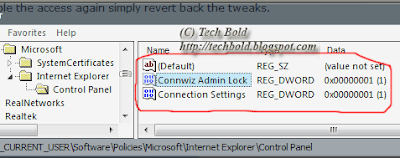
To remove the restrictions, set the proxy settings back to their original values and delete the policy values.
Truly Enable/Disable Run Dialog in Windows
Most people think that run dialog in Windows can be easily disabled or enabled by using the Start menu properties. You can right click on the Taskbar, click on properties and then click on the Start Menu tab, click customize, click advanced, and from there you can remove the run dialog from the Start Menu in Windows XP and Vista.
Why it will not work from Taskbar Properties?
However, this is not full proof. Why? Because users can still press Windows' Key+R to open the run dialog. Or they can open Task Manager and click on file, then on to new task (run) to open run dialog box. Additionally they can open Internet Explorer or Windows Explorer and use the address bar as run dialog. No kidding!
Truly disable run Dialog from Start Menu, Internet Explorer/Windows Explorer, and Task Manager
To truly disable run dialog from running or should I say disable users from running any program from command line, do this:
- Start Group Policy Editor. (Start->Run->"gpedit.msc") (Ironically we are using run dialog box!)
- On the left, go to User Configuration->Administrative Templates->Start Menu and Taskbar.
- On the right, enable this setting "Remove run from Start Menu". (see figure below)

If you enable this setting, the following changes occur:
- The Run command is removed from the Start menu.
- The New Task (Run) command is removed from Task Manager.
- The user will be blocked from entering the following into the Internet Explorer Address Bar:
- A UNC path: \\
\ - Accessing local drives: e.g., C:
- Accessing local folders: e.g., \temp>
Users will no longer be able to display the Run dialog box by pressing the Application key (the key with the Windows logo) + R.
If the user tries to open run dialog using any method, he'll get a message saying that the run dialog is disabled by Administrator.

Disable right click for Windows
The following tricks will let you disable right click for Windows, which means completely disable right click for files, folders, explorer, desktop etc. Since, the first trick doesn't stops right click access for Taskbar and Start Menu, but the second trick will let us disable right click access for Taskbar, Start menu and the clock. However, both the tricks will not disable the system menu (i.e. restore, move, size, close etc when you right click on title of any application).
Disable right click for Taskbar and Start Menu
- Start Group Policy Editor. (Start->Run->"gpedit.msc")
- On the left, go to User Configuration->Administrative Templates->Start Menu and Taskbar.
- On the right, enable this option "Remove access to the context menus for the taskbar".
The above setting hides the menus that appear when you right-click the taskbar and items on the taskbar, such as the Start button, the clock, and the taskbar buttons. This setting does not prevent users from using other methods to issue the commands that appear on these menus.
Disable right click for Desktop, Files, Folders and Windows Explorer
- Start Group Policy Editor. (Start->Run->"gpedit.msc")
- On the left, go to
- User Configuration->Administrative Templates->Windows Components->Windows Explorer.
- On the right, enable this option "Remove Windows Explorer's default context menu".
The above setting removes shortcut menus from the desktop and Windows Explorer. Shortcut menus appear when you right-click an item. If you enable this setting, menus do not appear when you right-click the desktop or when you right-click the items in Windows Explorer. This setting does not prevent users from using other methods to issue commands available on the shortcut menus. Which means, users can still press F2 to rename a file or folder and press Delete to delete a file.
Disable Access to Task Manager in Windows
The task manager in Windows XP and Windows Vista can be disabled in two ways. You can disable the task manager either by making a registry entry or by using the Group Policy Manager. I would prefer the latter since it is much more convenient and you don't have to worry about backing up the registry in case something goes wrong.
Note: Before making any changes to the Windows registry, make sure you do a backup, in case something is messed up and so that you can restore things to normal. For any help, read How to safely edit, backup, and restore Windows registry.
Disable the Task Manager using Windows Registry
- Start Registry Editor. (Start->Run->"regedit")
- To disable Task Manager for current user logged in, go to
- HKEY_CURRENT_USER\Software\Microsoft\Windows\CurrentVersion\Policies\system
- or
- To disable Task Manager for the whole system, go to
- HKEY_LOCAL_MACHINE\Software\Microsoft\Windows\CurrentVersion\Policies\system
- Create a new DWORD value named "DisableTaskMgr".
- Set its value to 1 do disable Task Manager or 0 to enable Task Manager. (see below figure)

(click on image for larger preview)
You may need to restart your system for this setting to take effect.
Disable the Task Manager using Group Policy Editor
- Start Group Policy Editor. (Start->Run->"gpedit.msc")
- On the left, go to User Configuration->Administrative Templates->System->Ctrl+Alt+Del Options.
- On the right, enable this setting "Remove Task Manager".

If this setting is enabled and users try to start Task Manager, a message appears explaining that the Task Manager has been disable by the Administrator.

by thegrchet
Hide Username from Windows Login Screen
By default Windows lists each username in the login screen, except for the Administrator. You can hide a username from the Windows XP login screen by creating a registry entry. However, even if you hide the username from the login screen, it is possible for that user to login by the old Windows 2000 Ctrl+Alt+Del method.
By Pressing Ctrl+Alt+Del, the old small login screen kicks in, and the user can enter his username and password to login to the system.
Hiding a Username by Making a Registry Entry
- Start Registry Editor. (Start->Run->"regedit")
- Go to, HKEY_LOCAL_MACHINE\SOFTWARE\Microsoft\Windows NT\CurrentVersion\Winlogon\SpecialAccounts\UserList
- Create a new DWORD value named to the username you want to hide. For example, if the username you want to hide is "Vikas", create a new DWORD value called "Vikas" and give it a value of 0 to hide it from login screen.
- Now log off to see it in action. You can press Win+L to temporary lock the system to check if it's working or not.

Note: Before you try to edit the registry, make sure you backup it first. For more information read how to safely edit the Windows' registry.
Put a command line on your desktop
Ok, so I know not many people use command prompt anymore especially if they are much satisfied with the user interface of Windows, but there are many things which command prompt offers which Windows GUI can't. For example, you can make a folder super hidden only from command line, or launch your favorite programs without typing the whole addresses etc.
If you use command line regularly you'll love this new trick which puts a command line right on your desktop. You can use this to launch windows explorer shortcuts, open web addresses (web sites and web pages), right from your desktop.
You can put a command line on your desktop by:
- Make sure Taskbar is not locked!
- Right click on the Task Bar and go to Toolbars.
- From the menu, click on Address.
- A new "Address" should appear on your Taskbar.
- Simply drag the "Address" to any where on the Desktop including top. (see figure below)
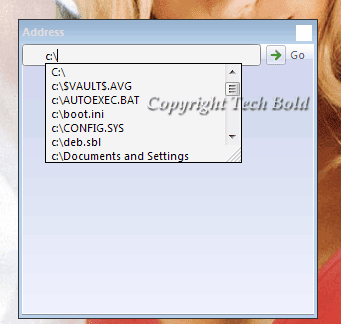
So, from now on you can simply type any address (local i.e drives, Internet address i.e. web sites or any type of address including network address) and have it open instantly in Windows Explorer or in your Internet browser.
Add me at:: getunplugged@gmail.com
Encrypt and Protect Your Data in PC and PDA
FreeOTFE is quite useful when it comes to protecting the data from intruders and whether for PCs or/and PDAs. It is a freeware which offers "on-the -fly" disk encryption. It creates virtual disks on the system and these disks are encrypted.

These disks are encrypted and operate like a normal disk partition. Anything written on these disks is automatically encrypted and saved on your hard disk. You'll need to create a master password with a key file. The most important feature is that the data encrypted on your PC can be read or/and written on your PDA, and vice versa.
You can create the encrypted volume using a very easy to use wizard. You can either encrypt a whole partition or use a file as an encrypted volume. And it supports Windows and Linux both. For Windows it runs from Windows 98/ME to Windows XP.
You can also use it on Windows Vista by disabling UAC. And it can run portablely from your USB stick or portable hard drive.
Disable a user from logging off Windows
In order to make sure that a user always shuts down the Windows instead of logging off, you can disable the logging off options from the Windows. By disabling the logging off options, a user can either switch the user, or will have to shut down the system. He/she will not be able to log off the system, but will be able to shutdown the system.
In order to remove the logging off option from the Window, you'll have to remove the "Log Off" from the start menu and from the Task Manager as well.
1. Remove Log Off option from Task Manager
In order to remove the "log off
- Open Group Policy Editor (Start->Run->"gpedit.msc")
- On the left go to, User Configuration->Administrative Templates->System->Ctrl+Alt+Del Options.
- On the right, Enable this setting "Remove Logoff". (see figure below)

This setting does not let the user log off the system by using any method, including programs run from the command line, such as scripts. It also disables or removes all menu items and buttons that log the user off the system except from the Start Menu.

2. Remove Log Off from the Start Menu
To remove the log off button from the Start Menu, do as follows:
- Open Group Policy Editor (Start->Run->"gpedit.msc")
- On the left go to, User Configuration->Administrative Templates->Start Menu and Taskbar.
- On the right, Enable this setting "Remove Logoff on the Start Menu". (see figure below)

If you enable this setting, the Log Off

$500 for catching a Software Pirate?!
The Software and Information Industry Association (SIIA) has announced that they will pay you 500 bucks if you catch a software pirate red handed. One thing you might try is to buy pirate software from eBay, and then you might become eligible for this cash.

In their "Don't Get Mad, Get Even" Campaign which is just launched, they have stated that
"The first 100 individuals who inadvertently purchase counterfeit software on an auction site, complete an application to participate in the “Don’t Get Mad, Get Even” program, submit the application to SIIA by no later than 5 pm EST January 30, 2008 and satisfy all the eligibility requirements necessary to participate in the program, will be eligible to receive up to $500 from SIIA. The payment is intended to help the buyer purchase a legitimate copy of the software."
The campaign will run from December 13, 2007 to January 30, 2008. However, there is a catch. The software must be one of the companies which has partnered with SIIA.
Too bad Microsoft isn't in their partnership list or I could have just bought another copy of Vista via eBay. But some big names like Apple, Adobe, McAfee, Nero, Oracle are there if you want to try.
Whenever the system crashes, Scandisk or Chkdsk utility runs and recovers any files or chunks of "data" which may have been lost as a result of the crash. Since every recovered file has .CHK extension, you'll not be able to find the file type. You cannot distinguish if the file is graphic file(like .jpg) or a word document (.doc) or any other type of file.
These recovered files may contain some important data, so it advisable to check the content of these files before deleting them. This is where CHK-Mate comes in. CHK-Mate is a freeware which helps in identifying the type of the recovered files.

CHK-Mate will scan the contents of these recovered files and will identify their file type. Once the contents are recognized (for example a GIF file), it will automatically copy the existing file as new file with the right extension (Filexxx.chk -> Filexxx.gif). Now you'll be able to open the file using the associated program.
If it fails to recognize the file type for a particular file, you can still extract all the readable text from the CHK file and save it in some other file.
By default CHK-Mate recognizes the files of JPG, GIF, ZIP, CAB, EXE, DLL, OCX, WRI, BMP, DOC, PPT, XLS, PDF, HTM(L), WAV, MID, AVI, RAR, TIF and MP3 format. You can further add more file types in it.
Delete files permanently using Super Shredder
Whenever you delete some files from your system, the file is actually not erased from the system, only the index pointing to the file is destroyed, but the file's data can still be recovered.
When you delete a file on your computer, the data in that file can remain on your hard drive for weeks or even months until something else overwrites the space that it occupied.

Even if the file no longer appears in recycle bin, they can still be recovered. This poses a security threat because if anyone else has access to your system, he/she can recover deleted files and the confidential data.
If you want to permanently delete your file, you can use Super Shredder. SuperShredder works by destroying the data inside the file BEFORE it deletes the file from the system - in this way ensuring that someone can't come back at a later date and retrieve sensitive material.

In order to delete a file you can use the program to create a Send-To Menu Association(see above figure).

Then you can simply send the files to be deleted to the SuperShredder Menu and confirm the file deletion.
It is a freeware, and you can click here to download SuperShredder.
Related posts:
Firefox Live Chat Support
Mozilla the company which stormed the web with Firefox has started a live chat support service for Firefox. However the service is opened only for few hours in a day. The help is provided for Firefox related issues only.

The service is started by a handful of volunteers, or we can better say the staffer are just probably fans of Firefox who wanted to help people having trouble with Firefox.
Mozilla states that the service is still in beta and if it becomes a success Mozilla would surely expand it in future. In the recent past Mozilla has been trying desperately to lure I.E users and starting the chat support seems like a big effort. Remember that chat support is something which is only provided by companies providing commercial software.
So, if you're having trouble with Firefox you know where to get help next time.
Add me at : getunplugged@gmail.com
Subscribe to:
Posts (Atom)